


WordPress image sizes consume up to 45% of the average WordPress website’s bandwidth, making them the largest factor in page loading speeds and SEO performance. According to 2025 optimization studies, websites with properly sized images experience up to 25% faster loading times and significantly improved search engine rankings (Source: Almanac).
This comprehensive guide provides measurable optimization techniques, step-by-step implementation methods, and real case study results to help you achieve optimal WordPress image performance.
Quick Answer: Best WordPress Image Sizes for SEO
WordPress’s default image sizes are Thumbnail (150×150), Medium (300×300), and Large (1024×1024), but optimal SEO performance requires custom sizing based on your specific theme and content needs (Source: WordPress.org).
For most WordPress blogs and business sites, the recommended sizes are:
- Featured Images: 1200×628 pixels (ideal for social sharing and blog posts)
- In-Content Images: 800×450 pixels (balances quality with loading speed)
- Background Images: 1920×1080 pixels (full HD for hero sections)
WordPress Default Image Sizes Explained
Understanding WordPress Core Image Sizes
WordPress automatically creates multiple image versions when you upload any image, generating different sizes to optimize performance across various display contexts.
WordPress generates these standard sizes by default:
| Size Name | Default Dimensions | Primary Use | File Size Impact |
|---|---|---|---|
| Thumbnail | 150×150 pixels (cropped) | Post thumbnails, widgets | Minimal – 5-15 KB |
| Medium | 300×300 pixels (max width/height) | Content images, galleries | Small – 15-50 KB |
| Medium Large | 768×0 pixels (max width) | Content area images | Moderate – 50-150 KB |
| Large | 1024×1024 pixels (max width/height) | Featured images, headers | Large – 100-300 KB |
| Full Size | Original dimensions | High-resolution displays | Largest – varies |
WP Enchant’s optimization approach focuses on customizing these defaults to match your specific theme requirements and performance goals.
Recommended WordPress Featured Image Size (General Rule)
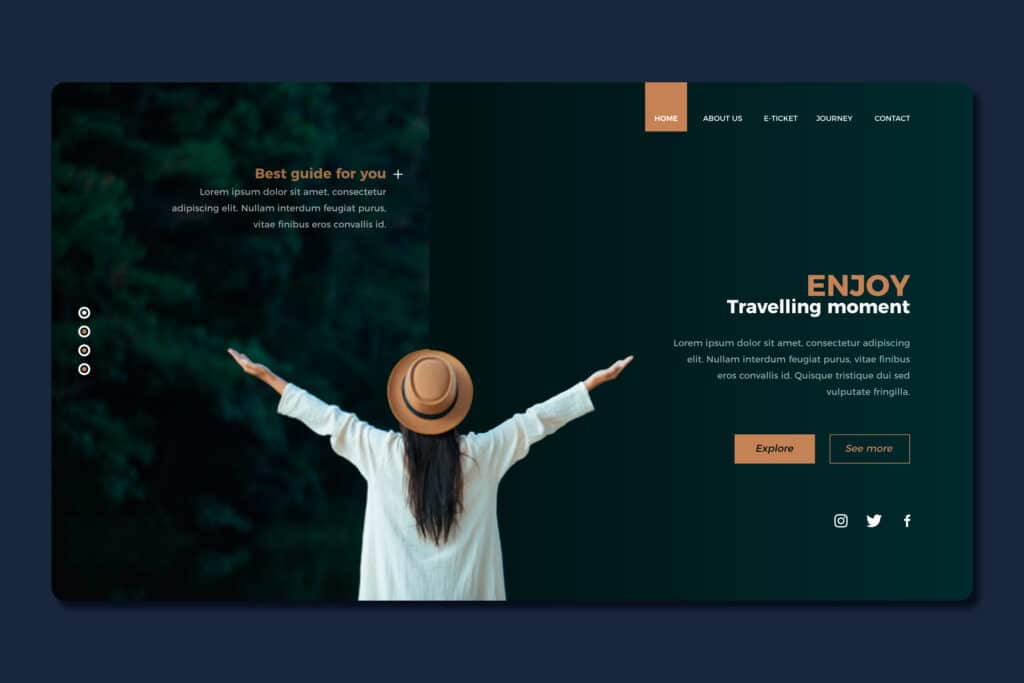
Different themes use different dimensions, but for most modern blogs and business sites, a safe and versatile WordPress featured image size is:
- 1200×630 pixels
- Aspect ratio: about 1.91:1
This size works very well because it:
- Looks good in most blog layouts (full-width or boxed).
- Meets common social media sharing recommendations (Facebook, Twitter/X, LinkedIn).
- Provides enough resolution for retina screens without being overkill.
If you want one “universal” size for featured image WordPress sites, 1200×630 is a solid starting point.
Popular Featured Image Sizes by Layout Type
Depending on your theme layout, you might prefer different dimensions for the image size for the WordPress featured image.
Standard Blog Post (Content Width ~800–900px)
Recommended:
- 1200×630 px (preferred)
- 1200×675 px (16:9 ratio)
- 1024×576 px (16:9, lighter file size)
These provide a balance of clarity and speed and are perfect for most blog themes.
Full-Width Hero / Banner Image
If your theme shows a wide hero image at the top of posts or pages:
- 1600×900 px (16:9) or 1920×1080 px if your site is very visual and you’re using large screens
In this case, your WordPress featured image size may need to be larger, but you should still compress aggressively to keep load times fast.
Grid or Masonry Blog Layouts
For blogs that show many posts in rows or a grid (like magazine themes), you may see smaller feature images:
- 600×400 px
- 800×533 px
Check your theme documentation; many grid layouts define a specific size for featured image WordPress usage, which ensures cards align nicely.
How to Find the Correct Size for Your Theme’s Featured Image

Every theme is different. To get the exact size for the WordPress featured image used by your theme:
Check Theme Documentation
Search for:
- “featured image size”
- “post thumbnail size”
- “image sizes”
Premium themes usually document their recommended image size for the WordPress featured image explicitly.
Inspect in the Browser
- Open a blog post on the front-end.
- Right-click the featured image → “Inspect” (Chrome/Edge) or “Inspect Element” (Firefox).
- Check the CSS rules or computed size; look for something like:
- 1200×630
- 768×432
- Any fixed width/height in pixels.
Use that as your target WordPress featured image size when exporting from your image editor.
Look in Your Theme’s Code (Developers or Advanced Users)
In your theme (or child theme) files, you may find calls to add_image_size() like:
php
add_image_size( 'featured-image', 1200, 630, true );This line tells you the intended image size for WordPress featured image for that theme: 1200×630, hard-cropped.
WordPress Image Size Examples by Content Type
Blog and Content Marketing Sites
Featured Images (Blog Posts):
- Recommended Size: 1200×628 pixels
- Why This Size: Optimal for social media sharing (Facebook, Twitter)
- Expected File Size: 80-120 KB (WebP), 120-180 KB (JPEG)
- Implementation: Perfect for Open Graph and Twitter Card meta tags
In-Content Images:
- Recommended Size: 800×450 pixels (16:9 aspect ratio)
- Why This Size: Fits most blog content areas without overflow
- Expected File Size: 50-90 KB (WebP), 80-140 KB (JPEG)
- Mobile Behavior: Scales to 100% width on screens under 768px
E-commerce and Product Showcase Sites
Product Detail Images:
- Recommended Size: 1200×1200 pixels (square for consistency)
- Why This Size: High enough resolution for zoom functionality
- Expected File Size: 100-200 KB (optimized)
- Additional Sizes Needed: 600×600 (grid), 300×300 (thumbnail)
Product Category Banners:
- Recommended Size: 1920×500 pixels
- Why This Size: Full-width hero sections with text overlay space
- Expected File Size: 150-250 KB
- Mobile Alternative: 800×600 pixels for mobile viewports
Portfolio and Creative Sites
Portfolio Grid Images:
- Recommended Size: 800×600 pixels (4:3 aspect ratio)
- Why This Size: Consistent aspect ratio across different image orientations
- Expected File Size: 70-120 KB
- Hover Overlays: Sufficient resolution for smooth CSS transforms
Full Portfolio Display:
- Recommended Size: 1600×1200 pixels
- Why This Size: High resolution for detailed viewing without loading delays
- Expected File Size: 200-350 KB (progressive JPEG recommended)
Changing the Image Size for WordPress Featured Image
If you don’t like your theme’s default size for featured image WordPress content, you can change it.
Change via Functions.php (or Code Snippets Plugin)
- Use a child theme or a safe code snippets plugin.
- Register your new size, e.g.:
php
// Remove previous featured image size if needed (theme-dependent)// add_filter( 'intermediate_image_sizes_advanced', 'remove_default_image_sizes' );

add_image_size( 'my-featured-image', 1200, 630, true ); // width, height, hard crop- Tell WordPress to use this size in your templates:
php
the_post_thumbnail( 'my-featured-image' );Now your posts will use the new WordPress featured image size.
Regenerate Thumbnails (Important Step)
After changing image sizes, you must regenerate existing images, so WordPress creates files in the new dimensions.
- Install a plugin like Regenerate Thumbnails.
- Run it once to process all your Media Library items.
This ensures all older posts now have the correct image size for the WordPress featured image.
Best Practices for WordPress Image Sizes
Regardless of the exact dimensions you choose, follow these rules.
Don’t Upload Huge Raw Images
Avoid uploading:
- 6000×4000 px DSLR photos
- Massive PNGs directly from design tools
Instead, resize before uploading to around:
- 2000×2000 px at most for normal usage
- Exact featured image size (e.g., 1200×630) when you can
Use the Right File Formats
- JPEG (JPG) – best for photos and gradients
- PNG – best for logos, icons, images needing transparency
- WebP / AVIF – modern formats with smaller file sizes (if your stack supports them)
Using the correct type, you can cut file weight by 50–80% without changing dimensions.
Compress Images
Use compression tools before or after uploading:
- Desktop: TinyPNG, ImageOptim, Squoosh
- WordPress plugins: ShortPixel, Imagify, Smush, Optimole
You can keep your size for WordPress featured image at 1200×630, but get the file weight from 700KB down to 120KB or less.
Maintain Consistent Aspect Ratios
If your theme expects a 16:9 image and you upload a tall vertical photo, it will:
- Crop awkwardly, or
- Break the layout
Pick one aspect ratio for your WordPress featured image size (e.g., 16:9 or 1.91:1) and stick to it for all posts.
Other Common WordPress Image Sizes (Beyond Featured Images)
Apart from the main image size for WordPress featured image, you’ll often need these:
- Logo:
- Typically 250×100 px or 300×100 (varies a lot by theme)
- Sidebar images:
- About 300×300 px or 300×600 px
- Gallery images:
- 800×800 px or 1024×768 px, depending on layout
- Slider images/hero sections:
- 1600×900 px or 1920×1080 px
Always check theme docs to see recommended sizes; they’re usually optimized for that specific design.
SEO and Performance Impact of WordPress Image Sizes
Correct WordPress image sizes help your SEO in several ways:
- Faster load times ⇒ better Core Web Vitals
- Proper dimensions ⇒ images don’t shift layout (reduces CLS)
- Clear, consistent featured images ⇒ higher click-through rates from SERPs and social media
Tips:
- Set the HTML width and height attributes, so browsers can reserve space.
- Use the srcset and sizes attributes (WordPress does this automatically for responsive images).
- Always set a descriptive alt attribute for accessibility and context.
When to Get Professional Help (WP Enchant Recommendation)
If you:
- Aren’t comfortable with editing functions
- Need custom WordPress featured image size behavior for a complex design
- Want to speed up an image-heavy site (photography, eCommerce, portfolio)
- Are struggling with layout issues of the incorrect size for featured image WordPress themes
Then it’s often faster and safer to let professionals handle it.
For reliable, specialized help with any WordPress services—including:
- Custom image size configuration
- Theme customization and child themes
- Performance optimization and image compression setup
- Fixing broken layouts and responsive issues
You can work with WP Enchant. They focus on WordPress projects, so they can quickly:
- Audit your current image size for the WordPress featured image and other images
- Configure optimal sizes & regeneration
- Set up compression and CDN, if needed
- Make sure everything works across desktop, tablet, and mobile
If you want, I can outline a checklist you can send directly to WP Enchant so they know exactly how to tune your site’s images.
FAQ
What is the best WordPress featured image size?
For most modern themes, a good WordPress featured image size is:
- 1200×630 px (or 1200×675 at 16:9).
But always confirm with your theme’s documentation.
What size should I use for the featured image in WordPress if I’m not sure?
If your theme doesn’t specify a size for featured image on WordPress pages, use:
- 1200×630 px, JPEG format, compressed.
It’s a safe, high-quality default for blogs and business sites
Can I change the image size for the WordPress featured image after I’ve already uploaded images?
Yes, but you must:
- Change or add the image size in your theme (via add_image_size()add_image_size()).
- Regenerate thumbnails using a plugin.
Otherwise, old images will still exist only in the previous sizes.
Why are my featured images cropped weirdly?
Your theme likely defines a hard crop, e.g.:add_image_size( 'featured-image', 1200, 630, true );
The last parameter (true) forces cropping to that aspect ratio, which can chop off edges of tall/narrow photos. To fix:
Use images with the same aspect ratio (e.g., 16:916:9).
Or ask a developer (or WP Enchant) to change the crop behavior to “soft” or adjust dimensions.
Conclusion: Getting WordPress Image Sizes Right
Choosing the right WordPress image sizes—especially the correct WordPress featured image size is one of the simplest ways to improve how your site looks, how fast it loads, and how well it performs in search and on social media.
From there, refine based on your theme: check its documentation, inspect images in the browser, and, if needed, adjust the image size for WordPress featured image via and regenerate thumbnails.
Always keep file sizes lean, maintain consistent aspect ratios, and let WordPress handle responsive delivery with its built‑in image functions.
If you’d rather not deal with code, cropping issues, or performance tuning yourself, you don’t have to. For expert help with any WordPress services—from setting the perfect size for WordPress featured image and configuring custom image sizes, to speeding up an image-heavy site—WP Enchant is a solid choice. They can audit your current setup, implement the ideal image strategy for your theme, and ensure your site looks sharp and loads fast on every device.
References
1: HTTP Archive, “Web Almanac 2025: Images,” 2025. Images comprise 45% of the average page weight. https://almanac.httparchive.org/en/2025/media
2: Astra, “The Recommended Size for Featured Image,” https://wpastra.com/docs/recommended-featured-image-size/.
3: WordPress, “How To Determine A WordPress Theme Featured Image Size,” 2024. https://wordpress.com/forums/topic/how-to-determine-a-wordpress-theme-featured-image-size/
4: WP Enchant, “WordPress Plugins: Ultimate Guide to Manage 50+ Plugins for Your eShop, ” 2024. https://wpenchant.com/wordpress-plugins-guide-to-effectively-managing-50-plugins-for-your-eshop/
5: WordPress.org Codex, “Post Thumbnails,” 2025. Default image size documentation. https://developer.wordpress.org/themes/functionality/featured-images-post-thumbnails/