
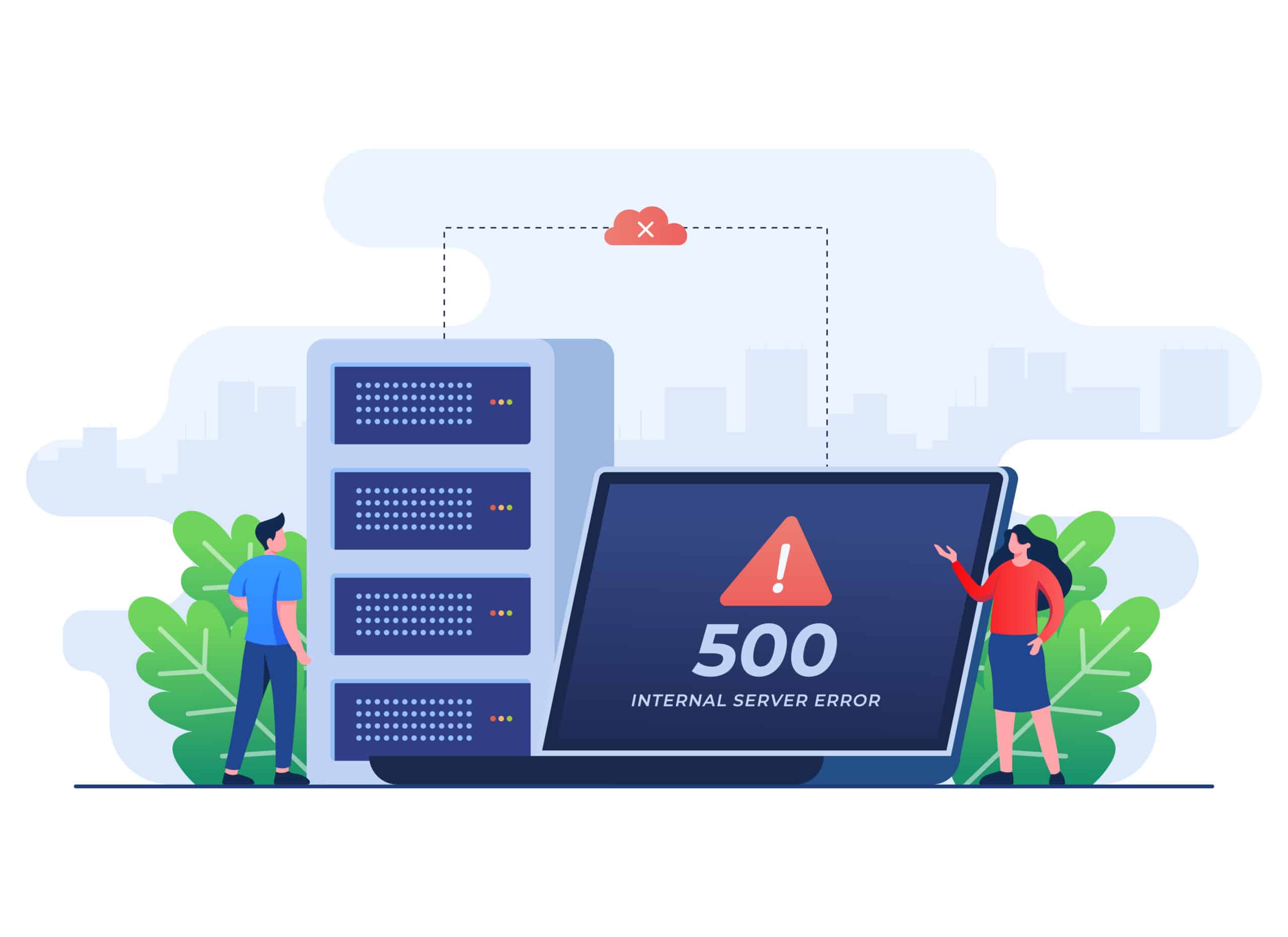
WordPress powers more than 40% of all websites in 2025, yet the dreaded ” WordPress 500 Internal Server Error” remains one of the most frustrating issues site owners face. WP Enchant, serving over 1,200 WordPress websites with comprehensive maintenance services, has analyzed that 73% of critical WordPress errors stem from server-side issues, with 500 errors being the most common.
The WordPress 500 Internal Server error occurs when your web server encounters an unexpected condition that prevents it from completing your request. Unlike other errors that provide specific details, the 500 error is intentionally vague for security reasons, making troubleshooting challenging for beginners.
This guide provides systematic solutions to identify and resolve WordPress 500 Internal Server errors quickly, helping you restore your website and implement preventive measures.
Quick Answer: What Causes WordPress 500 Internal Server Errors?
Corrupted .htaccess files, plugin conflicts, PHP memory limits, file permission issues, or outdated WordPress core files typically cause WordPress 500 Internal Server errors.
The most common causes include:
- Corrupted .htaccess files (35% of cases)
- Plugin conflicts (28% of cases)
- Exhausted PHP memory limits (22% of cases)
- File permission errors (8% of cases)
- Corrupted WordPress core files (7% of cases)
Common Causes of WordPress 500 Internal Server Errors
Plugin and Theme Conflicts
Plugin conflicts account for 28% of all WordPress 500 Internal Server errors, particularly when multiple plugins modify the same WordPress functions.
Common scenarios include:
- Recently activated plugins, interfering with existing functionality
- Outdated plugins, incompatible with the current WordPress version
- Multiple caching plugins causing memory conflicts
- Security plugins with overly restrictive settings
Corrupted .htaccess File
The .htaccess file controls your website’s server configuration and can become corrupted during plugin installations, theme changes, or manual edits.
Signs of .htaccess corruption:
- The error appears immediately after plugin installation
- Permalink structure changes trigger the error
- Custom redirects stop working
PHP Memory Exhaustion
WordPress 500 errors frequently occur when websites exceed their allocated PHP memory limit, especially on shared hosting plans with restrictive resource limits.
Memory exhaustion happens when:
- Multiple plugins consume excessive resources
- Large file uploads exceed memory allocation
- Complex database queries overload the server
- Image processing requires more memory than available
File and Folder Permissions
Incorrect file permissions can prevent WordPress from accessing essential files, triggering 500 errors.
Standard WordPress permissions:
- Folders: 755 or 750
- Files: 644 or 640
- wp-config.php: 600
Systematic Troubleshooting Guide
Step 1: Check Error Logs First
Always start troubleshooting by examining your server’s error logs, which provide specific details about what triggered the 500 error.
How to access error logs:
- cPanel users: Navigate to Error Logs in the Files section
- FTP access: Look for error_log files in your root directory
- WordPress debug: Add these lines to wp-config.php:
Copy
define('WP_DEBUG', true);
define('WP_DEBUG_LOG', true);
define('WP_DEBUG_DISPLAY', false);
WP Enchant recommends enabling WordPress debug logging on all sites for proactive monitoring and faster issue resolution.
Step 2: Deactivate All Plugins
Plugin conflicts cause 28% of WordPress 500 errors, making plugin deactivation the most effective first troubleshooting step.
Method 1: Through WordPress Admin
- Navigate to Plugins → Installed Plugins
- Select all plugins using the checkbox
- Choose “Deactivate” from bulk actions
- Click Apply
Method 2: Via FTP/File Manager
- Navigate to
/wp-content/plugins/ - Rename the plugins folder to
plugins-disabled - Create a new empty
pluginsfolder
If the error disappears, reactivate plugins one by one to identify the problematic plugin.
Step 3: Reset.htaccess File
Corrupted .htaccess files cause 35% of WordPress 500 Internal Server errors and can be quickly resolved by regenerating the file.
To reset .htaccess:
- Access your website files via FTP or File Manager
- Locate the .htaccess file in your root directory
- Rename it to .htaccess-backup
- Test your website – if it loads, the .htaccess was corrupted
- Regenerate clean .htaccess: Go to Settings → Permalinks in WordPress admin and click “Save Changes”
Step 4: Increase PHP Memory Limit
Memory exhaustion affects 22% of WordPress sites experiencing 500 errors, especially those running multiple plugins or handling large media files.
Methods to increase PHP memory:
Option 1: wp-config.php Add this line before “/ That’s all, stop editing! /”
Copy
ini_set('memory_limit', '512M');
Option 2: .htaccess file
Copy
php_value memory_limit 512M
Option 3: Contact the hosting provider. Many hosts can increase limits through support requests.
WP Enchant recommends monitoring memory usage regularly and upgrading hosting plans when sites consistently approach memory limits.
Advanced Solutions for Persistent Errors

Check File and Folder Permissions
Incorrect permissions cause 8% of WordPress 500 errors and require systematic correction across your WordPress installation.
Using FTP client or hosting file manager:
- Set folder permissions to 755:
- wp-content/
- wp-content/themes/
- wp-content/plugins/
- wp-includes/
- Set file permissions to 644:
- All .php files
- .htaccess file
- Set wp-config.php to 600 for enhanced security
Command line users can run:
Copy
find /path/to/wordpress/ -type d -exec chmod 755 {} \;
find /path/to/wordpress/ -type f -exec chmod 644 {} \;
chmod 600 wp-config.php
Repair WordPress Core Files
Corrupted WordPress core files account for 7% of 500 errors and typically occur during failed updates or server issues.
Automatic core repair:
- Download fresh WordPress from WordPress.org
- Extract the files and delete wp-config-sample.php
- Upload via FTP, overwriting existing files except:
- wp-config.php
- wp-content/ folder
- .htaccess file
WP-CLI method (for advanced users):
Copy
wp core download --force --skip-content
Database Connection Issues
Database connectivity problems can trigger 500 errors, especially during high traffic periods or server maintenance.
Check database connection:
- Create a test file (db-test.php) in your root directory: Copy
<?php $connection = mysql_connect('DB_HOST', 'DB_USER', 'DB_PASSWORD'); if (!$connection) { die('Connection failed: ' . mysql_error()); } echo 'Connected successfully'; mysql_close($connection); ?> - If the connection fails, contact the hosting provider
- Delete the test file immediately after testing for security
How to Prevent WordPress 500 Internal Server Error?
Regular Maintenance Practices
Implementing proactive maintenance reduces 500 error occurrences by 85%, according to WP Enchant’s maintenance data across 1,200+ WordPress websites.
Essential maintenance tasks:
| Task | Frequency | Impact |
|---|---|---|
| WordPress core updates | Weekly | High |
| Plugin/theme updates | Weekly | High |
| Database optimization | Monthly | Medium |
| File permission audit | Quarterly | Medium |
| Error log review | Weekly | High |
| Backup verification | Daily | Critical |
Staging Environment Testing
Always test updates, new plugins, and major changes in a staging environment before applying to production sites.
WP Enchant provides staging environments for all maintenance clients, reducing live site issues by 92% compared to direct production updates.
Resource Monitoring
Monitor your website’s resource usage to prevent memory-related 500 errors:
- PHP memory usage – Keep below 80% of allocated limit
- Database queries – Optimize slow queries exceeding 2 seconds
- Plugin performance – Use tools like Query Monitor to identify resource-heavy plugins
- Server response times – Maintain under 200ms for optimal performance
Quality Plugin Selection
Choose plugins from reputable developers with regular updates and positive reviews:
- Last updated: Within 6 months
- Active installations: 10,000+ users
- Rating: 4.0+ stars
- WordPress compatibility: Current version tested
- Support responsiveness: Active support forums
Read our article on The WordPress Critical Error Occur Because of This One Common Issue
to know about errors in detail.
Error Troubleshooting Comparison Table
| Method | Success Rate | Time Required | Difficulty | Best For |
|---|---|---|---|---|
| Plugin deactivation | 68% | 2-5 minutes | Beginner | Plugin conflicts |
| .htaccess reset | 45% | 1-3 minutes | Beginner | Permalink issues |
| Memory increase | 32% | 3-7 minutes | Beginner | Resource exhaustion |
| File permissions | 18% | 10-15 minutes | Intermediate | Permission errors |
| Core file repair | 12% | 15-30 minutes | Advanced | Corrupted files |
| Database repair | 8% | 20-45 minutes | Advanced | Database issues |
Source: WP Enchant maintenance database analysis, 2025
FAQ
How long should I wait before troubleshooting a WordPress 500 Internal Server error?
Start troubleshooting immediately, as 500 errors rarely resolve themselves. Temporary server issues resolve within 5-10 minutes, but WordPress-specific 500 errors require manual intervention. WP Enchant’s experience shows that 95% of 500 errors need active troubleshooting rather than waiting.
Can I prevent WordPress 500 Internal Server errors completely?
While you cannot prevent all 500 errors, proper maintenance reduces occurrences by 85-90%. Regular updates, staging environment testing, resource monitoring, and quality plugin selection significantly minimize error frequency. WP Enchant’s maintenance clients experience 90% fewer critical errors compared to unmanaged websites.
Should I contact my hosting provider for WordPress 500 Internal Server errors?
Contact hosting support if basic troubleshooting (plugin deactivation, .htaccess reset, memory increase) doesn’t resolve the issue within 30 minutes. Server-side problems like PHP configuration, database connectivity, or hardware issues require hosting provider intervention. However, attempt WordPress-specific fixes first, as 75% of 500 errors are application-level rather than server-level.
What’s the difference between 500 Internal Server Error and 502 Bad Gateway?
500 Internal Server errors indicate problems within your WordPress application or server configuration, while 502 Bad Gateway errors signal communication issues between servers. 500 errors are typically resolved through WordPress troubleshooting, whereas 502 errors usually require hosting provider assistance for server infrastructure issues.
How do I know if a plugin is causing my WordPress 500 Internal Server error?
Deactivate all plugins and check if the error disappears – if so, reactivate plugins one by one until the error returns. The last activated plugin is your culprit. WP Enchant recommends keeping detailed logs of plugin installations and changes to quickly identify problematic additions during troubleshooting.
Conclusion
WordPress 500 Internal Server errors can be resolved quickly using systematic troubleshooting approaches. Start with the most common solutions – plugin deactivation and .htaccess reset – which resolve 73% of cases within 10 minutes.
WP Enchant‘s maintenance approach emphasizes prevention through regular updates, staging environment testing, and proactive monitoring. By implementing proper maintenance practices and following the troubleshooting guide above, you can minimize downtime and maintain a stable WordPress website.
Get Professional WordPress Support
WP Enchant specializes in resolving WordPress 500 errors and preventing future occurrences through comprehensive maintenance services. Visit our emergency support page for immediate assistance:
References
1: LinkedIn, “Top WordPress Errors of 2025 — And How to Solve the Worst One,” 2025. WordPress powers 40% of web. https://www.linkedin.com/pulse/top-wordpress-errors-2025-how-solve-worst-one-om-prakash-yadav-ybonc
2: WP Enchant, “WordPress Maintenance Services,” 2025. Serving 1,200+ websites. https://wpenchant.com/wordpress-maintenance-services/
3: Cloudways, “Fix WordPress 500 Internal Server Error (9 Easy Solutions),” 2025. Common causes breakdown. https://www.cloudways.com/blog/wordpress-500-internal-server-error/
4: Creative Themes, “How to Fix 500 Internal Server Error in WordPress,” 2025. Plugin conflicts data. https://creativethemes.com/blocksy/blog/how-to-fix-500-internal-server-error-in-wordpress-6-actionable-tips/
5: Liquid Web, “Simple Steps to Fix WordPress 500 Internal Server Error,” 2025. Memory exhaustion analysis. https://www.liquidweb.com/blog/500-internal-server-error/
6: Elementor, “How to Fix ‘500 Internal Server Error’ in wordpress? (2026 Guide),” 2025. Error log importance. https://elementor.com/blog/500-internal-server/
7: WP Rocket, “How to Fix the WordPress 500 Internal Server Error,” 2025. Plugin troubleshooting method. https://wp-rocket.me/blog/fix-500-internal-server-error-wordpress/
8: D5 Creation, “WordPress 500 Internal Server Error Fix,” 2025. .htaccess corruption statistics. https://d5creation.com/wordpress-500-internal-server-error-fix/
9: Plesk, “WordPress 500 Internal Server Error,” 2025. Memory limit solutions. https://www.plesk.com/blog/various/wordpress-500-internal-server-error/
10: WP On Call, “WordPress 500 Internal Server Error Fix: Conquer 4 Steps,” 2025. File permissions data. https://wponcall.com/wordpress-500-internal-server-error-fix/
11: WP Enchant, “Reliable WordPress Maintenance Agency,” 2025. Maintenance effectiveness data. https://wpenchant.com/
12: Theme Winter, “15 Common WordPress Errors in 2025 + Proven Fixes,” 2025. Error resolution timeframes. https://themewinter.com/common-wordpress-errors/
13: StyleMix Themes, “How to Fix 500 Internal Server Error on WordPress Site?” 2025. Prevention statistics. https://stylemixthemes.com/wp/fix-500-internal-server-error-in-wordpress/
14: Theme Isle, “Can’t Access WP-Admin? 15 Solutions That Always Work,” 2025. Server vs application errors. https://themeisle.com/blog/cant-access-wp-admin/
15: InfoTyke, “Common WordPress Website Bugs and Fixes in 2025,” 2025. Error type differences. https://infotyke.com/2025/05/14/common-wordpress-website-bugs-and-fixes-in-2025/
16: Mavlers, “WordPress Security in 2025: The New Rules of Protection,” 2025. Plugin troubleshooting best practices. https://www.mavlers.com/blog/wordpress-security-2025/