
Even a few hours of WordPress downtime can cost you traffic, leads, and real revenue. Search rankings can slip, ad campaigns can burn money sending visitors to broken pages, and first-time visitors may never come back. In a fast, always-on web, your site is expected to work 24/7—and when it doesn’t, the consequences compound quickly.
In this guide, you’ll learn what WordPress downtime is, why it happens, how to check if your site is down, and how to prevent website downtime in WordPress with practical steps, tools, and best practices. We’ll also cover quick fixes for common issues and how WordPress downtime and uptime monitoring can protect you before your visitors ever notice a problem.
What Is WordPress Downtime?

With more than 409 million people viewing about 20 billion pages on WordPress every month, even a few minutes of downtime can mean thousands of lost visitors, missed opportunities, and potential revenue loss.
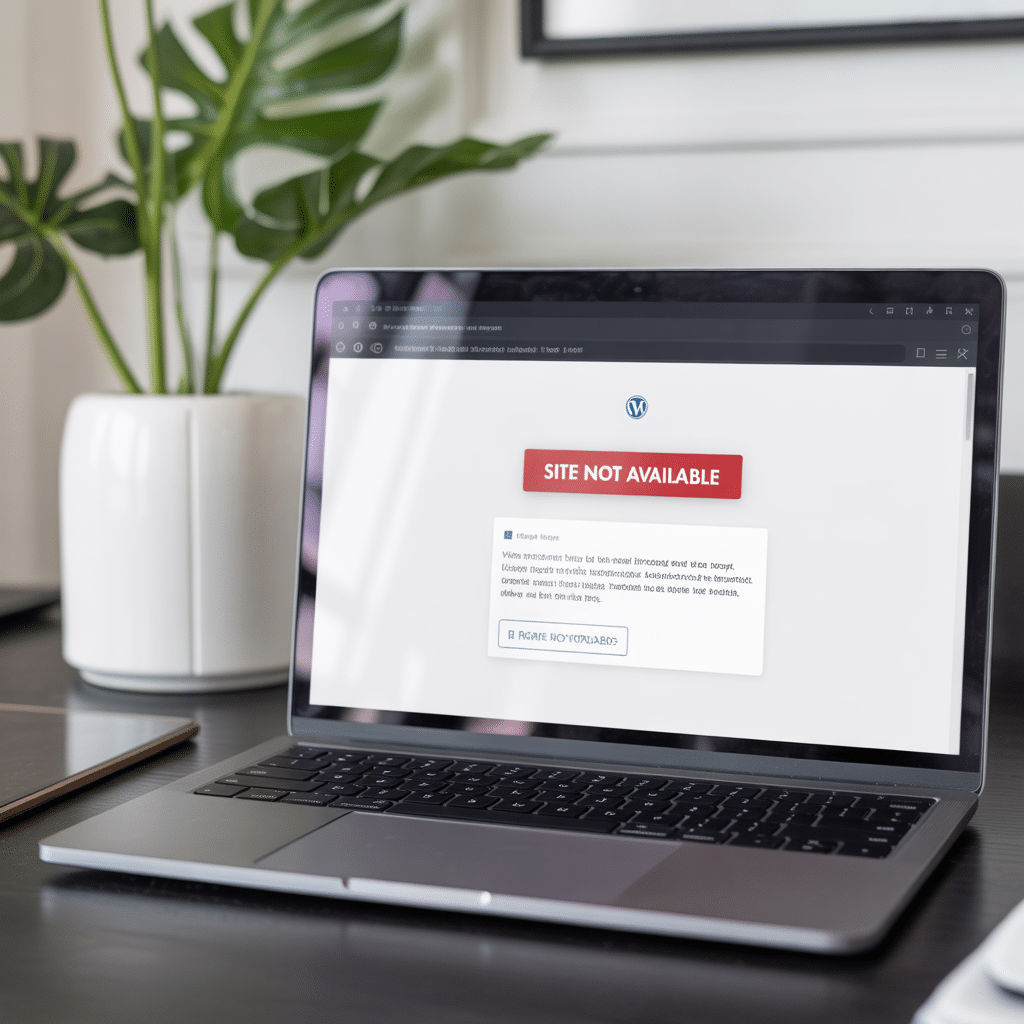
WordPress downtime is any period when your WordPress site is unavailable or not functioning properly for visitors. This can mean:
- Your site doesn’t load at all (server error, timeout, “Cannot connect”).
- Your homepage loads, but key pages show errors.
- The site is extremely slow to the point that users give up.
- Critical features (checkout, signup forms) stop working.
Search engines and users don’t distinguish between partial and full downtime—they just see a poor experience. That’s why you need to minimize both complete outages and severe performance issues.
Common Causes of WordPress Downtime
Understanding why downtime happens is the first step to preventing it.
1. Web Hosting Issues
Your hosting provider is the foundation of your site. Downtime can occur due to:
- Server overload (too many sites sharing limited resources).
- Hardware failures (disk, memory, network).
- Data center problems (power outages, network issues).
- Poor hosting configuration or overselling shared hosting.
If your hosting is unreliable, you’ll fight WordPress downtime no matter how well your site is built.
2. Plugin and Theme Conflicts
WordPress’s flexibility can cause instability when:
- A plugin update conflicts with your theme.
- Two plugins try to do similar things and collide.
- Poorly coded plugins cause PHP errors or fatal errors.
- Themes include outdated or insecure code.
These conflicts often cause the “white screen of death,” 500 errors, or continuous redirects.
3. WordPress Core, PHP, or Database Errors
Technical issues in your stack can take your site offline:
- Incomplete or failed WordPress core updates.
- PHP version incompatibility (old plugins on new PHP or vice versa).
- Corrupted database tables or connection issues.
- Misconfigured .htaccess or wp-config.php.
4. Security Breaches and Malware
Hackers and bots can take down your site by:
- Injecting malicious code that breaks pages.
- Overloading your server with attacks (DDoS).
- Defacing or deleting content and files.
Security incidents don’t just cause downtime—they also damage your brand and SEO.
5. Traffic Spikes and Resource Limits
Sudden surges in visitors—from a viral post, paid campaign, or seasonal sale—can overwhelm limited hosting resources:
- CPU and RAM max out.
- Database connections hit their limit.
- The site becomes extremely slow or stops responding.
If your infrastructure doesn’t scale, success can ironically cause more WordPress downtime.
6. DNS & Configuration Problems
Even if your server is fine, misconfigurations can cause downtime:
- Incorrect DNS records.
- Nameserver issues.
- SSL certificate misconfigurations or expiration.
- Firewall or CDN rules are blocking legitimate traffic.
How to Check If Your WordPress Site Is Down

Before you panic, verify whether your site is truly down, and if it’s just you or everyone.
1. Basic Checks
- Try a different browser or device.
- Use incognito/private mode to avoid cached errors.
- Disable VPN or try a different network (mobile vs Wi-Fi).
If it still doesn’t load, move to external checks.
2. Use “Is It Down” Checker Tools
Use third-party services to confirm downtime from multiple locations:
- Down For Everyone Or Just Me (downforeveryoneorjustme.com)
- IsItDownRightNow (isitdownrightnow.com)
These tools help confirm whether the issue is global or isolated to your network.
3. Check Hosting Status & Dashboard
- Log in to your hosting control panel.
- See if your server is marked as “up” or “down.”
- Look for maintenance notices, resource usage (CPU, RAM, I/O), or alerts.
If your host dashboard is also slow or unreachable, it’s likely a hosting-level problem.
4. Use WordPress Downtime and Uptime Monitoring
Continuous uptime monitoring lets you:
- Get instant notifications (email, SMS, Slack, etc.) when your site goes down.
- See uptime history and performance trends.
- Detect intermittent issues you might not notice yourself.
Tools like these are essential to prevent website downtime in WordPress before it affects a large number of visitors.
How to Prevent WordPress Downtime
You can’t control everything, but you can dramatically reduce the risk and impact of downtime.
1. Choose Reliable Hosting
Your host is the most critical factor in uptime. Look for:
- 99.9%+ uptime guarantees backed by SLAs.
- Managed WordPress hosting with optimized environments.
- Automatic backups and staging environments.
- Clear resource allocations (RAM, CPU, PHP workers).
If you’re regularly experiencing WordPress downtime, consider upgrading your hosting plan or switching providers.
2. Keep WordPress, Plugins, and Themes Updated
Outdated software is a major cause of both security breaches and functional errors.
- Enable automatic minor updates for WordPress.
- Regularly update plugins and themes.
- Remove unused plugins/themes to reduce attack surface and conflicts.
- Test important updates in a staging site before deploying live.
Read to know about the Upcoming WordPress Security Updates
3. Harden Security
Security best practices help prevent website downtime WordPress sites often suffer due to hacks:
- Use a web application firewall (WAF).
- Limit login attempts and enforce strong passwords.
- Use two-factor authentication (2FA) for admins.
- Change default login URL and restrict access by IP (where appropriate).
- Regularly scan for malware and vulnerabilities.
4. Optimize Performance & Scalability
Performance optimization isn’t just about speed; it’s also about stability under load.
- Implement caching (page, object, and browser).
- Use a Content Delivery Network (CDN) to offload static assets.
- Optimize images, use modern formats (WebP/AVIF).
- Minimize heavy plugins and database queries.
- Configure database optimization and routine cleanup.
Better performance means less chance of your site collapsing during traffic spikes.
5. Set Up WordPress Downtime and Uptime Monitoring
Monitoring tools help you proactively prevent WordPress downtime by:
- Alerting you within minutes (or seconds) of an outage.
- Providing reports on uptime percentages and response time.
- Helping you identify patterns (e.g., downtime during backups or high-traffic periods).
This visibility lets you fix issues before they affect many users.
6. Implement a Robust Backup Strategy
If something goes wrong, fast recovery is key.
- Schedule automatic daily backups at a minimum, more often for busy sites.
- Store backups offsite (not only on the same server).
- Regularly test restoring backups so you know they work.
- Keep multiple backup versions to recover from malware that went undetected for days.
Quick Fixes When Your WordPress Site Is Down

When downtime hits, act quickly and systematically.
1. Check for Plugin or Theme Conflicts
- Connect via FTP or your host’s file manager.
- Rename the plugins folder (e.g., to plugins-old) to deactivate all plugins.
- If the site comes back, reactivate plugins one by one to find the culprit.
- Switch temporarily to a default theme (e.g., Twenty Twenty-Five) to test for theme issues.
2. Disable Problematic Code Snippets
If you recently added custom code (functions, snippets, tracking scripts):
- Remove or comment out the new code from functions.php or your code snippets plugin.
- Clear caches and test again.
3. Repair the WordPress Database
If you see database errors:
- Enable database repair in wp-config.php:php
define('WP_ALLOW_REPAIR', true); - Visit yourdomain.com/wp-admin/maint/repair.php.
- Run the repair and then remove the line from wp-config.php afterward.
4. Regenerate .htaccess (For Apache Servers)
If you’re getting 500 internal server errors:
- Download a copy of your .htaccess file.
- Rename or delete the existing .htaccess.
- In your WordPress dashboard, go to Settings → Permalinks and click Save Changes to generate a fresh .htaccess.
5. Contact Your Hosting Provider
If none of the above works and you suspect a server issue:
- Open a support ticket or live chat.
- Share any error messages, timestamps, and what you have already tried.
- Ask if there are known server issues, resource limits, or maintenance activities.
Best Practices & Tools to Minimize WordPress Downtime

To truly prevent website downtime in WordPress, you need a combination of processes, tools, and automation.
1. Use a Staging Environment
Never test major changes on your live site.
- Use staging to test:
- Core, plugin, and theme updates.
- New features or custom code.
- Performance optimizations.
- Push to live only after confirming everything works.
2. Automate Monitoring and Alerts
Set up comprehensive WordPress downtime and uptime monitoring:
- Ping your site from multiple locations every few minutes.
- Monitor response times and SSL status.
- Get instant alerts when downtime is detected.
3. Document Your Stack & Changes
Keep a simple log of:
- Installed plugins and versions.
- Major updates and changes (dates and what was changed).
- Hosting environment details (PHP version, database, caching).
This makes troubleshooting faster and reduces guesswork when something breaks.
4. Use a Maintenance Page When Needed
If you must perform planned work:
- Use a maintenance mode plugin to show a friendly message.
- Inform users about expected downtime windows.
- Block search engines during maintenance to avoid indexing error pages.
5. Leverage Specialized Tools & Services
Consider tools that help you maintain uptime, security, and performance:
- Security and firewall plugins.
- Backup and restore services.
- Performance optimization tools.
- Central dashboards to manage multiple WordPress sites.
Why We Recommend WP Enchant
Managing all aspects of uptime—security, updates, performance, backups, and monitoring—can be complex and time-consuming. This is where a specialized WordPress management solution is invaluable.
WP Enchant is designed to help you prevent WordPress downtime proactively, not just react when things break. With WP Enchant, you can:
- Set up reliable WordPress downtime and uptime monitoring with instant alerts.
- Automate backups, updates, and basic security hardening.
- Get a clearer view of your site’s health, performance, and potential risks.
- Reduce the manual work required to keep your site stable and online.
If you’re serious about protecting your traffic, leads, and revenue, using a platform like WP Enchant is one of the most effective ways to prevent website downtime in WordPress and keep your site running smoothly.
Frequently Asked Questions (FAQs)
1. What is considered WordPress downtime?
WordPress downtime is any period when your site is unavailable or not functioning properly for users—whether it’s not loading at all, showing errors, or so slow that visitors leave. Search engines and users treat all of these as downtime.
2. How can I prevent website downtime in WordPress?
You can prevent website downtime in WordPress by choosing reliable hosting, keeping core, plugins, and themes updated, hardening security, optimizing performance, using a staging site for changes, and implementing WordPress downtime and uptime monitoring with proactive alerts.
3. How do I know if my WordPress site is down for everyone or just me?
Use external tools like “Down For Everyone Or Just Me” or uptime monitoring services. If those tools cannot access your site from multiple locations, your site is down globally, not just on your local network or device.
4. Can too many plugins cause WordPress downtime?
Yes. Too many or poorly coded plugins can slow your site, create conflicts, and even cause fatal errors that take your site offline. It’s best to use only essential, well-maintained plugins and remove those you don’t need.
5. How does WP Enchant help reduce WordPress downtime?
WP Enchant helps reduce WordPress downtime by providing automated uptime monitoring, alerts, backups, and management tools. It centralizes key maintenance tasks—like updates, security checks, and performance insights—so you can detect problems early and fix them before they turn into costly outages.
By understanding the causes of WordPress downtime and putting the right tools and processes in place, you can protect your traffic, rankings, and revenue. Don’t wait for the next outage—start monitoring, hardening, and optimizing now, and consider using WP Enchant to keep your WordPress site running reliably around the clock.
References
1: Scalahosting, “20+ WordPress Statistics to Know in 2025,” 2025. https://www.scalahosting.com/blog/20-wordpress-statistics-to-know/
2: Elegant Themes, “WordPress Plugin Conflicts: Your Ultimate Guide to Preventing Them, Identifying Them, and Resolving Them,” 2023. https://www.elegantthemes.com/blog/resources/wordpress-plugin-conflicts-your-ultimate-guide-to-preventing-them-identifying-them-and-resolving-them
3: IBM, “What is a content delivery network (CDN)?” 2024. https://www.ibm.com/think/topics/content-delivery-networks